Logging Your First Transfer
When you move points between loyalty programs (for example, Chase Ultimate Rewards to Flying Blue), Flyga tracks the value change so you can see whether the transfer was worth it.
Step 1: Open the Transfers Page
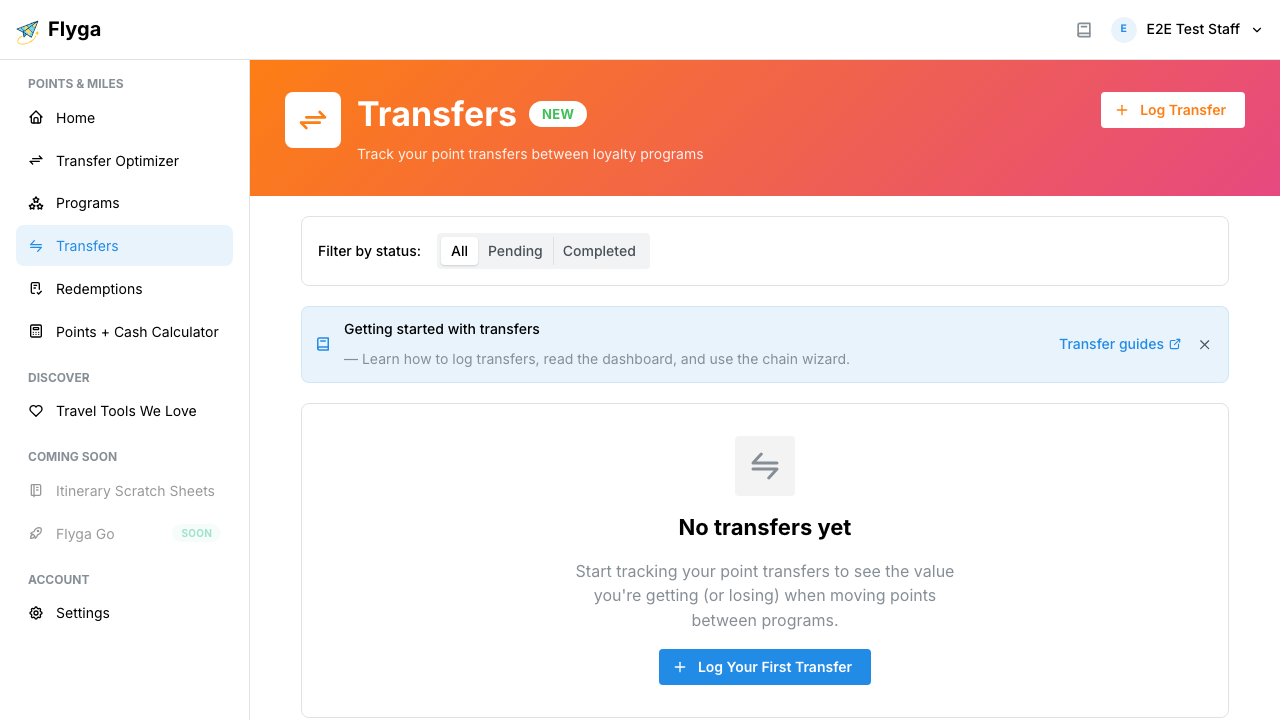
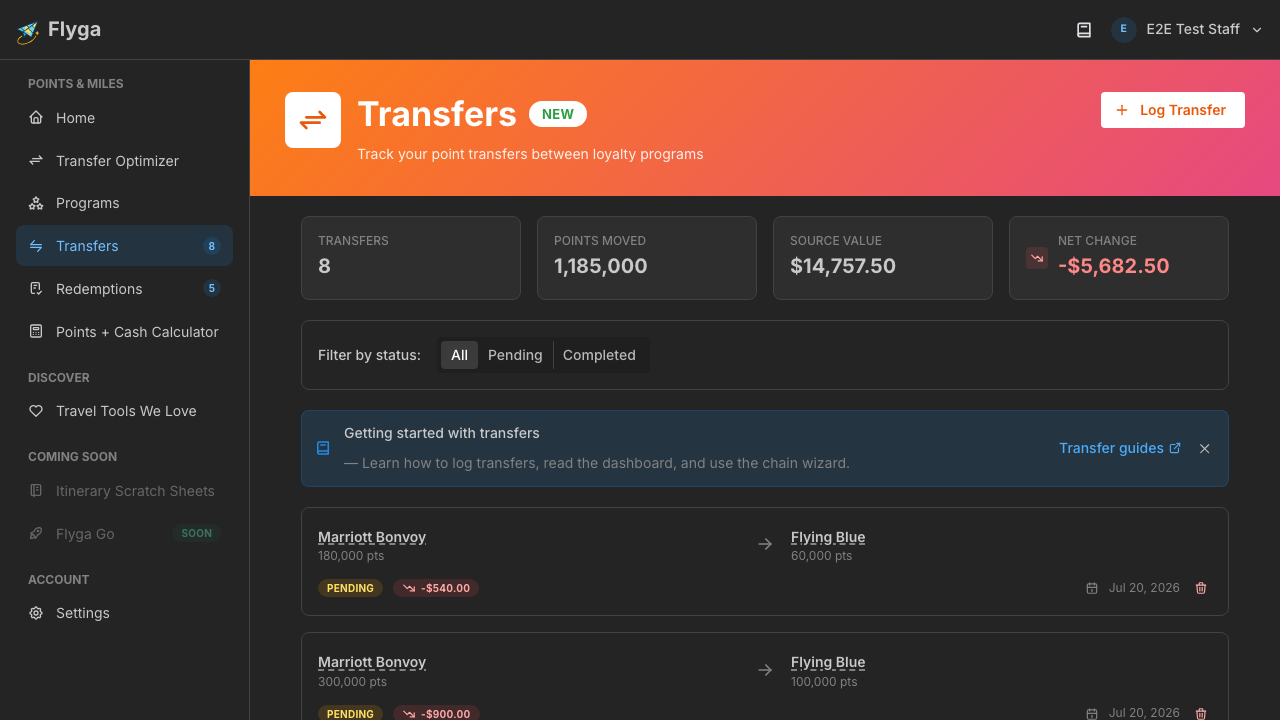
Section titled “Step 1: Open the Transfers Page”Navigate to Transfers from the sidebar. If you haven’t logged any transfers yet, you’ll see an empty state encouraging you to get started.
Step 2: Click “Log Transfer”
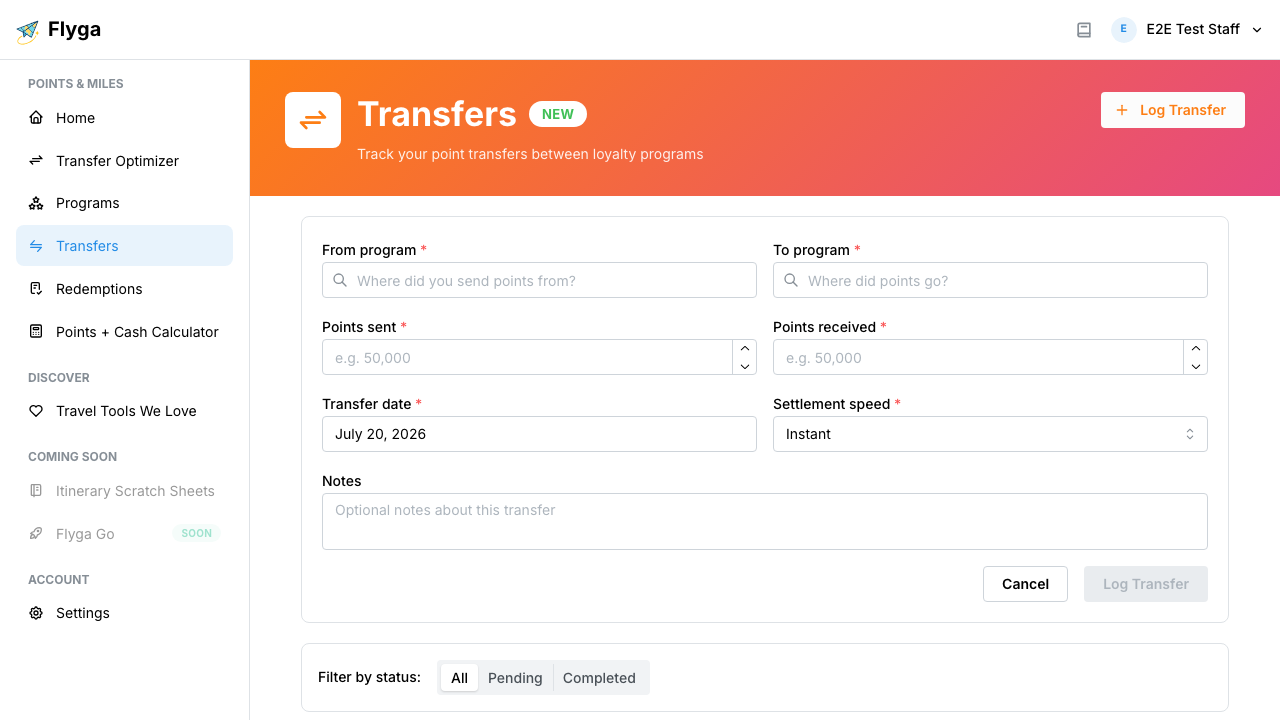
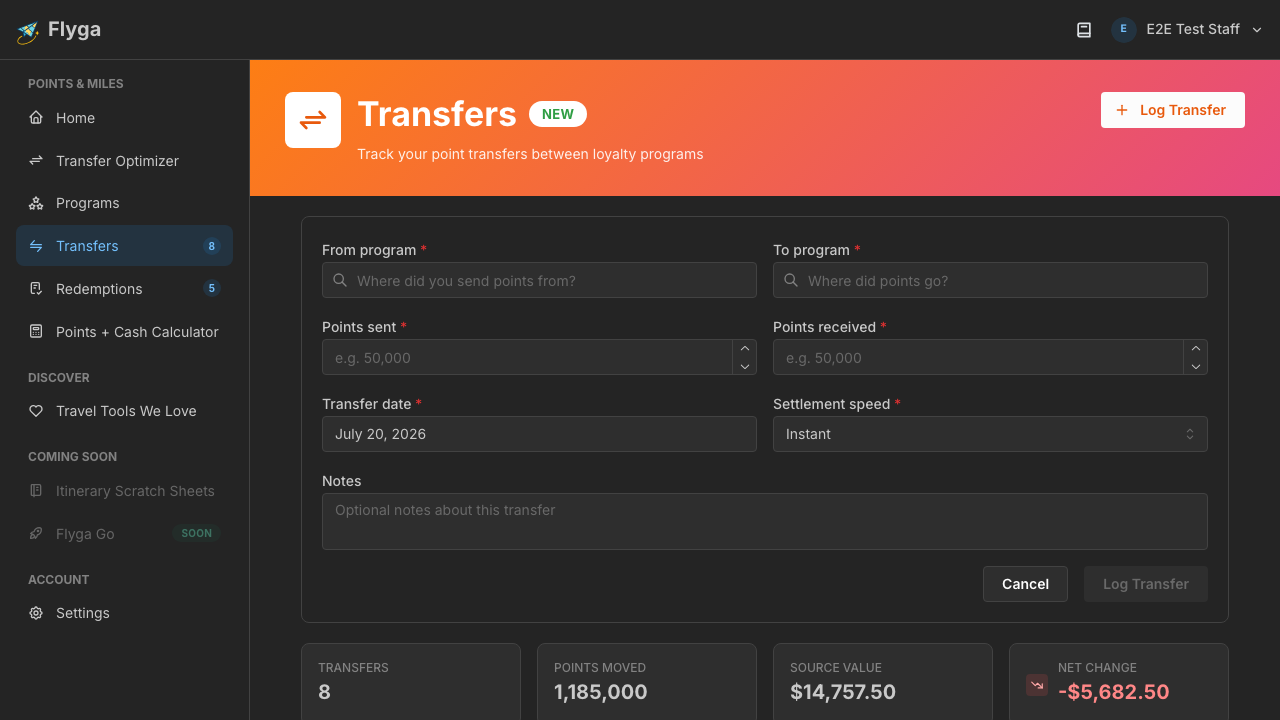
Section titled “Step 2: Click “Log Transfer””Click the Log Transfer button in the top-right corner. The form slides open inline.
Step 3: Select Your Source Program
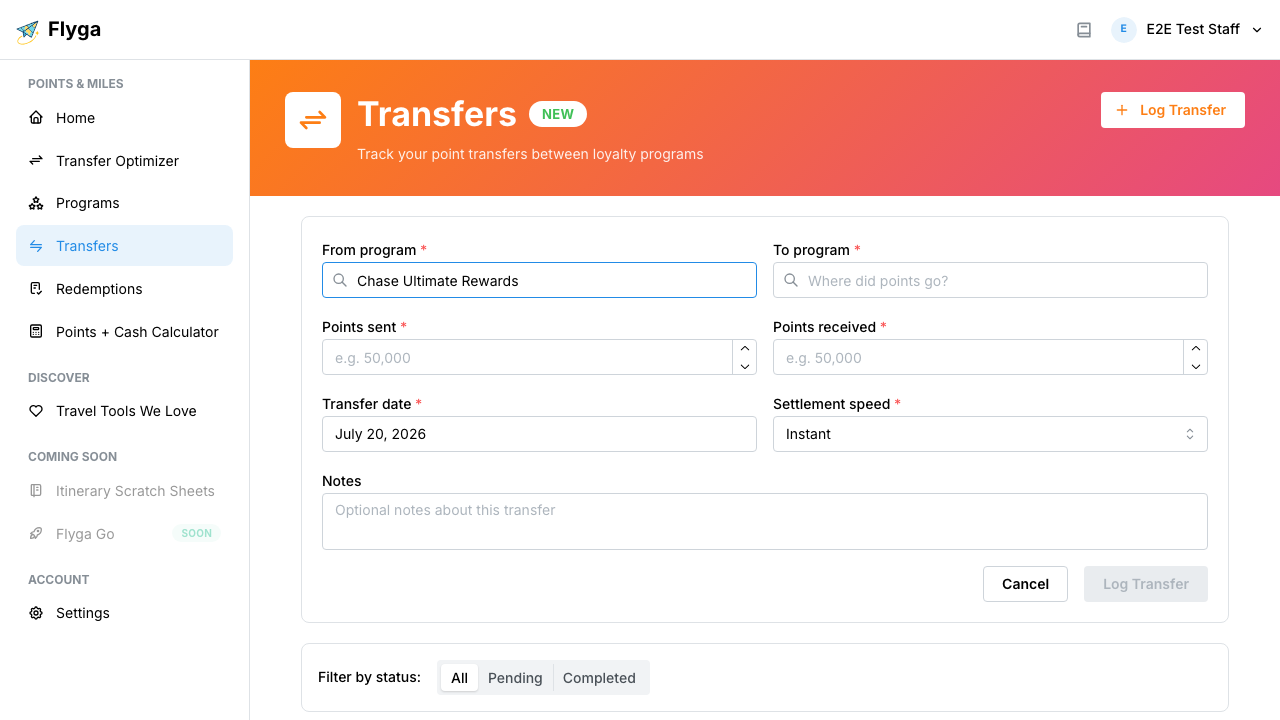
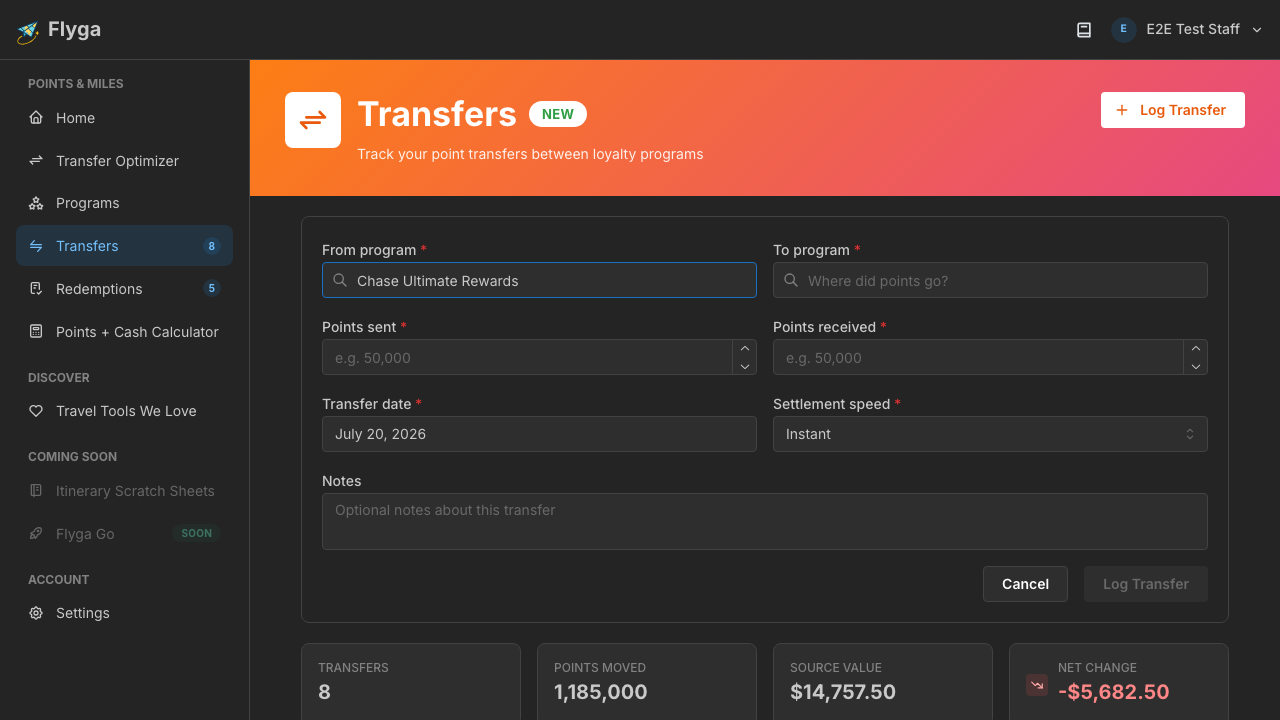
Section titled “Step 3: Select Your Source Program”In the From program field, start typing the name of the program you sent points from. In this example, we’ll type “Chase” and select Chase Ultimate Rewards.
Step 4: Select Your Destination Program
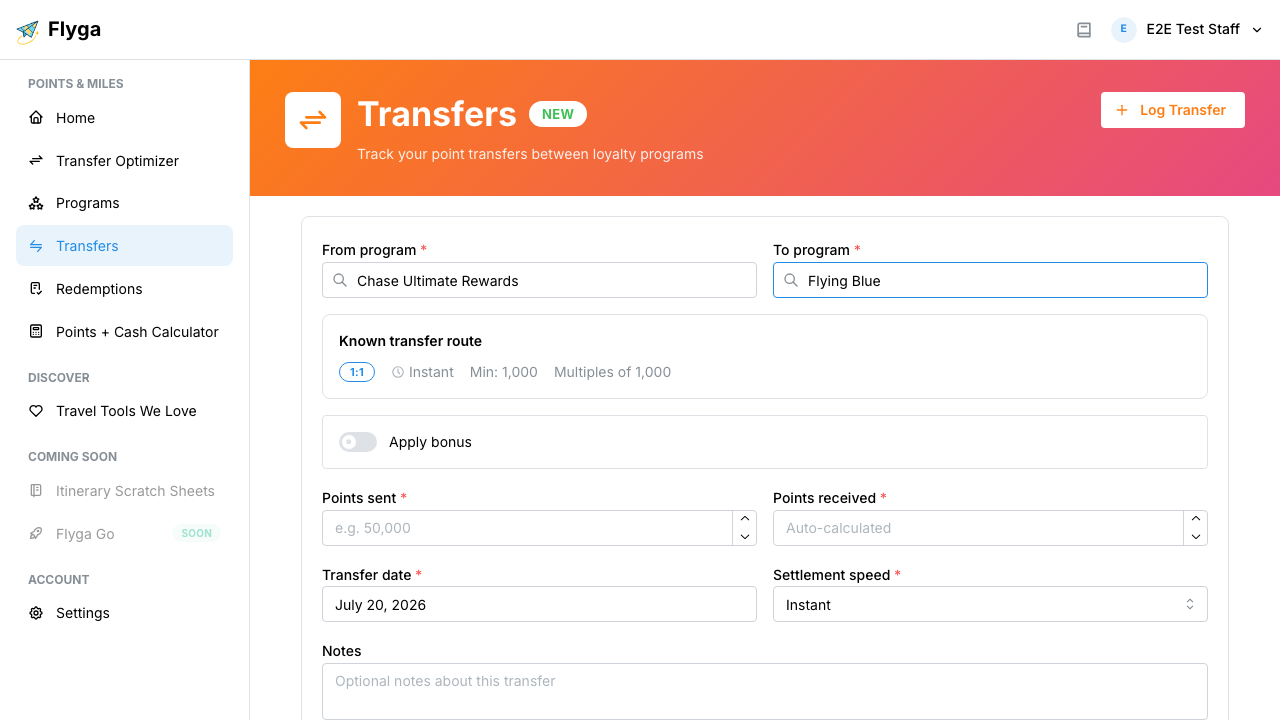
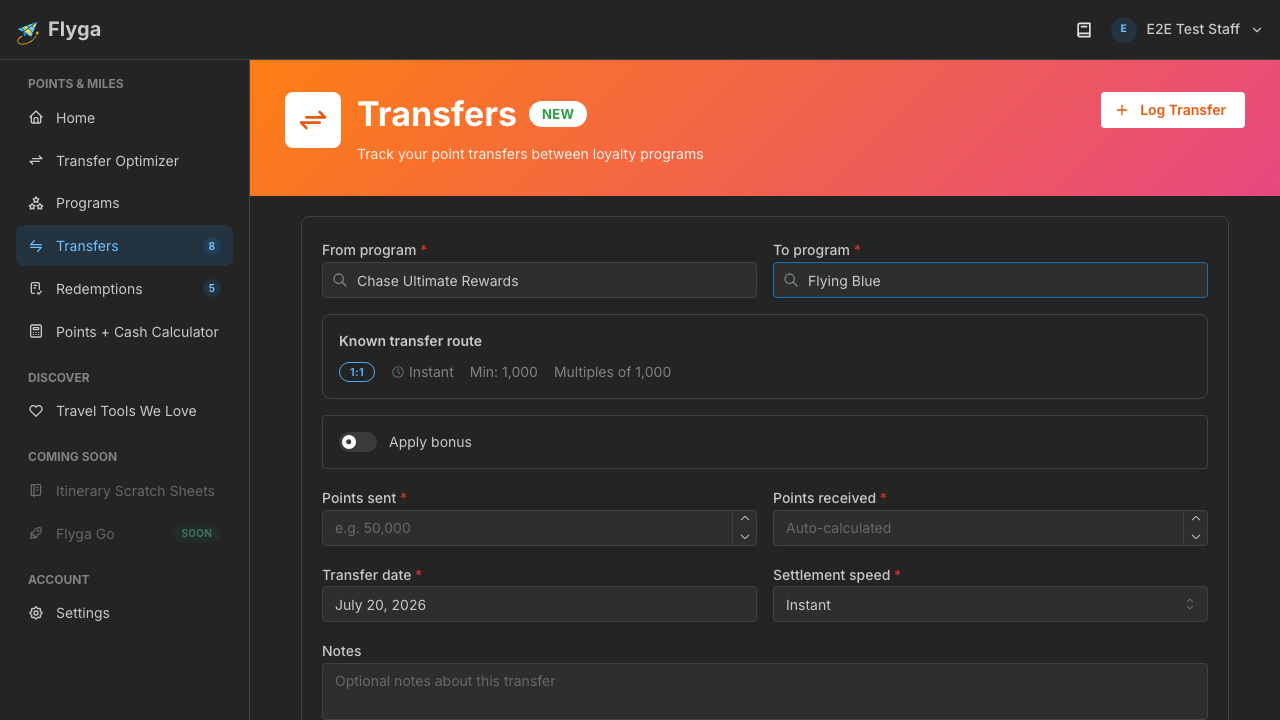
Section titled “Step 4: Select Your Destination Program”In the To program field, type the name of the program you transferred points to. Here we select Flying Blue.
Once both programs are selected, Flyga checks whether it already knows this transfer. If it does, you’ll see the transfer ratio, estimated settlement time, and any active bonus promotions.
Step 5: Enter Points and Submit
Section titled “Step 5: Enter Points and Submit”Enter the number of points you sent in the Points sent field. If Flyga knows this transfer, the Points received field auto-calculates based on the transfer ratio.
You can also adjust the Settlement speed (how long the transfer took) and add optional Notes for your own reference.
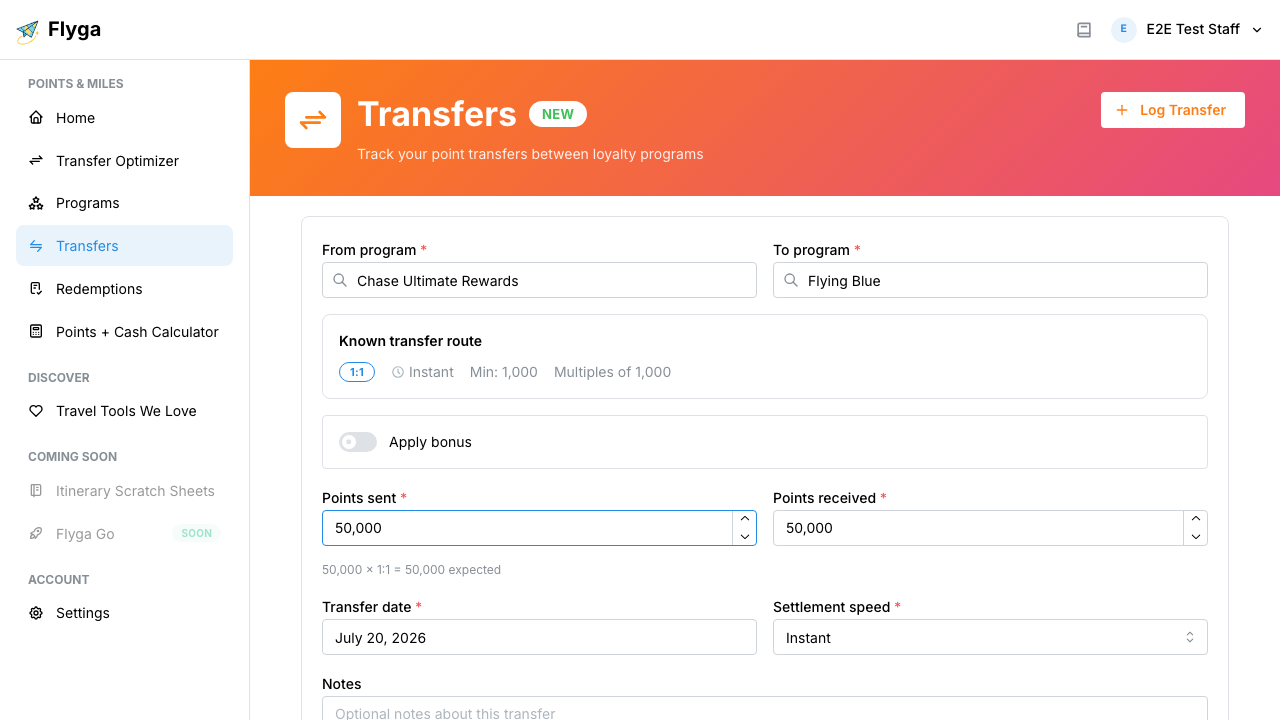
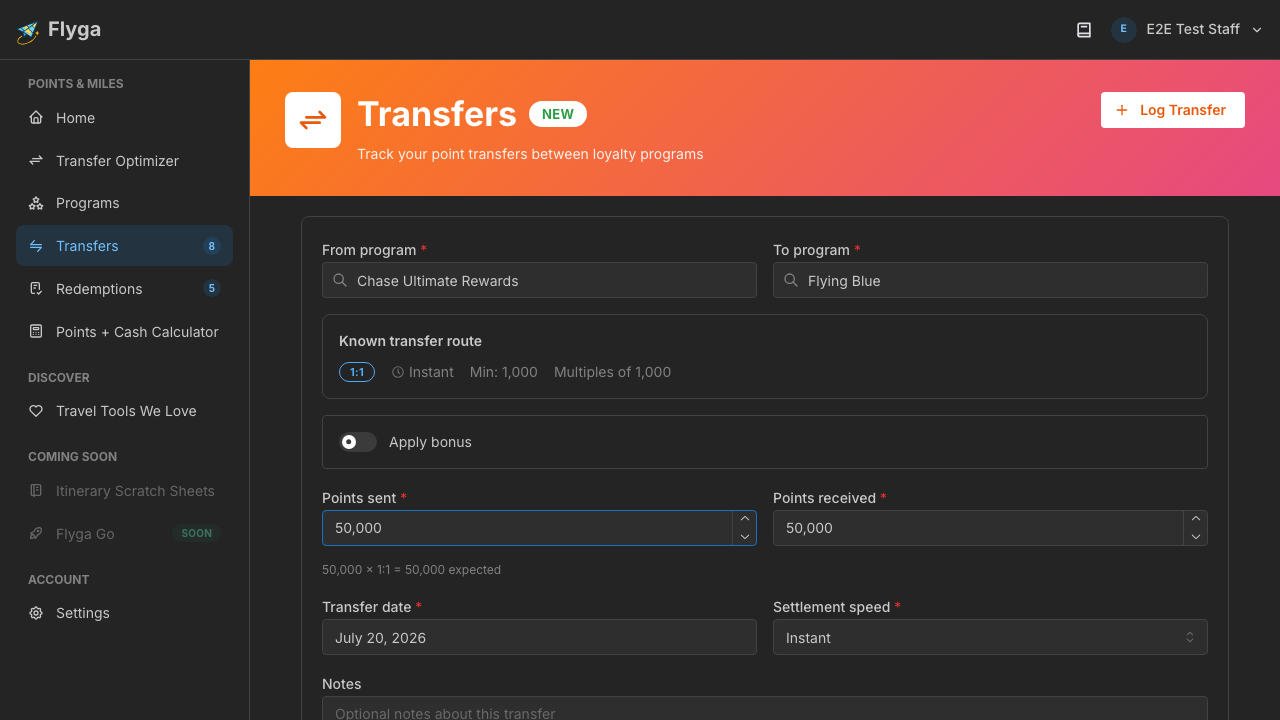
Click Log Transfer to save. You’ll see a success notification confirming your transfer was recorded.
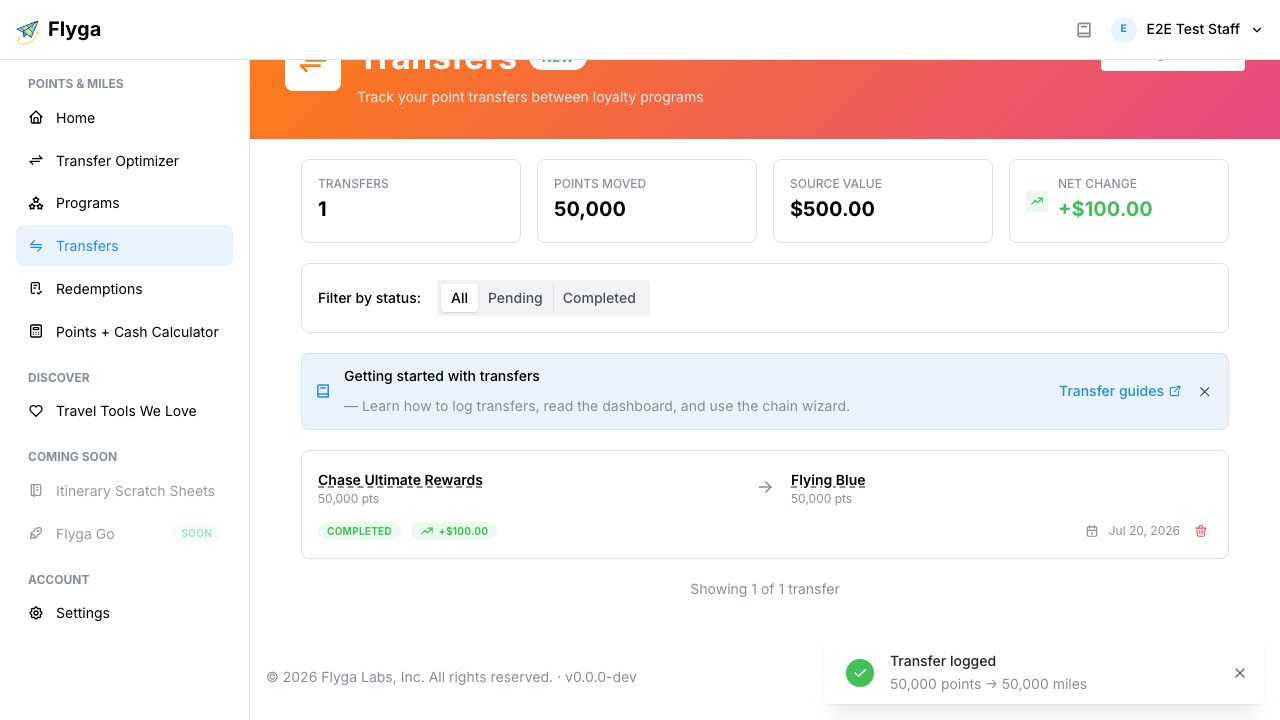
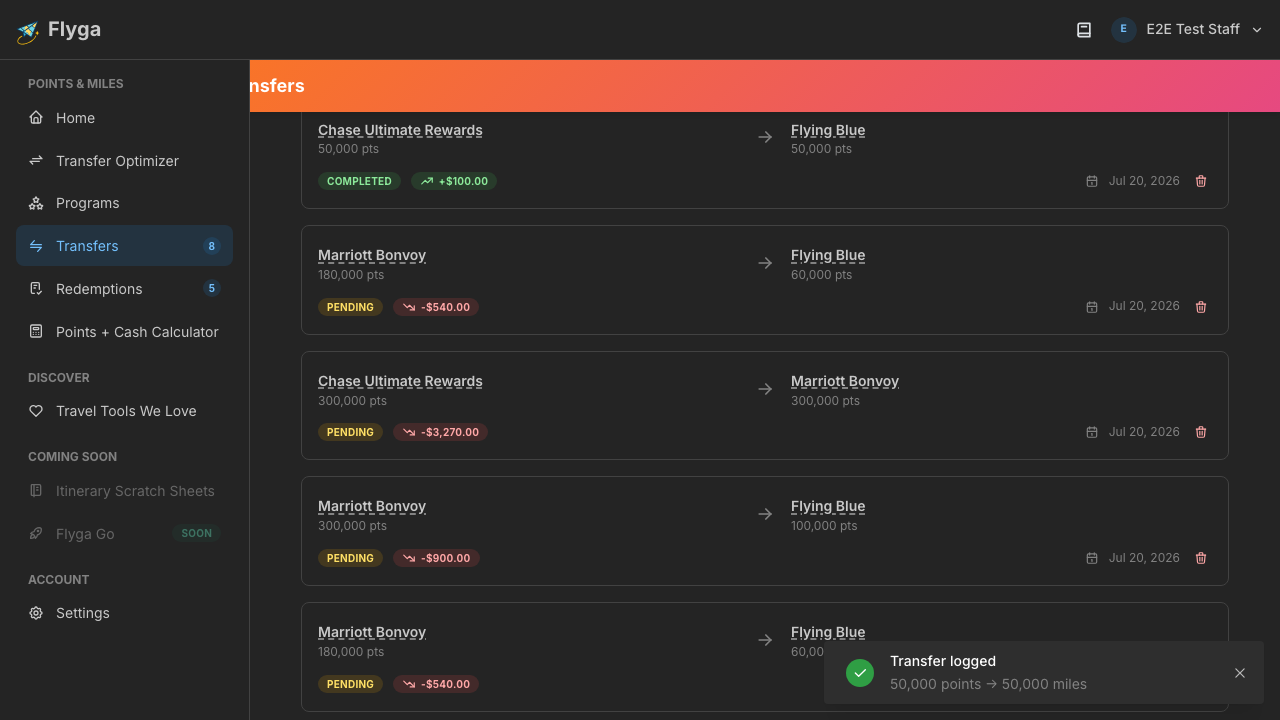
You’re all set! Your transfer now appears in your dashboard. Head to Understanding the Dashboard to learn how to read your transfer history.