Adding Flight Details
When you’re redeeming points for a flight, the wizard includes an optional Flight Details step where you can record your itinerary. This isn’t required, but it gives you a complete travel record and makes it easy to look back at exactly what you booked.
When Flight Details Appear
Section titled “When Flight Details Appear”The Flight Details step only shows up for flight redemptions. If you’re redeeming from an airline program (like Flying Blue or AAdvantage), the type is set to “Flight” automatically. For bank programs like Chase Ultimate Rewards, you’ll choose “Flight” from the type dropdown in Step 1, and the flight details step will appear.
Choosing an Itinerary Type
Section titled “Choosing an Itinerary Type”Start by selecting how your trip is structured:
- One Way — A single flight or series of connections in one direction
- Round Trip — An outbound flight and a return flight
- Multi-City — Multiple separate flights (e.g., NYC to London, then Paris to Tokyo)
- Open Jaw — Fly into one city and out of another (e.g., fly into London, train to Paris, fly home from Paris)
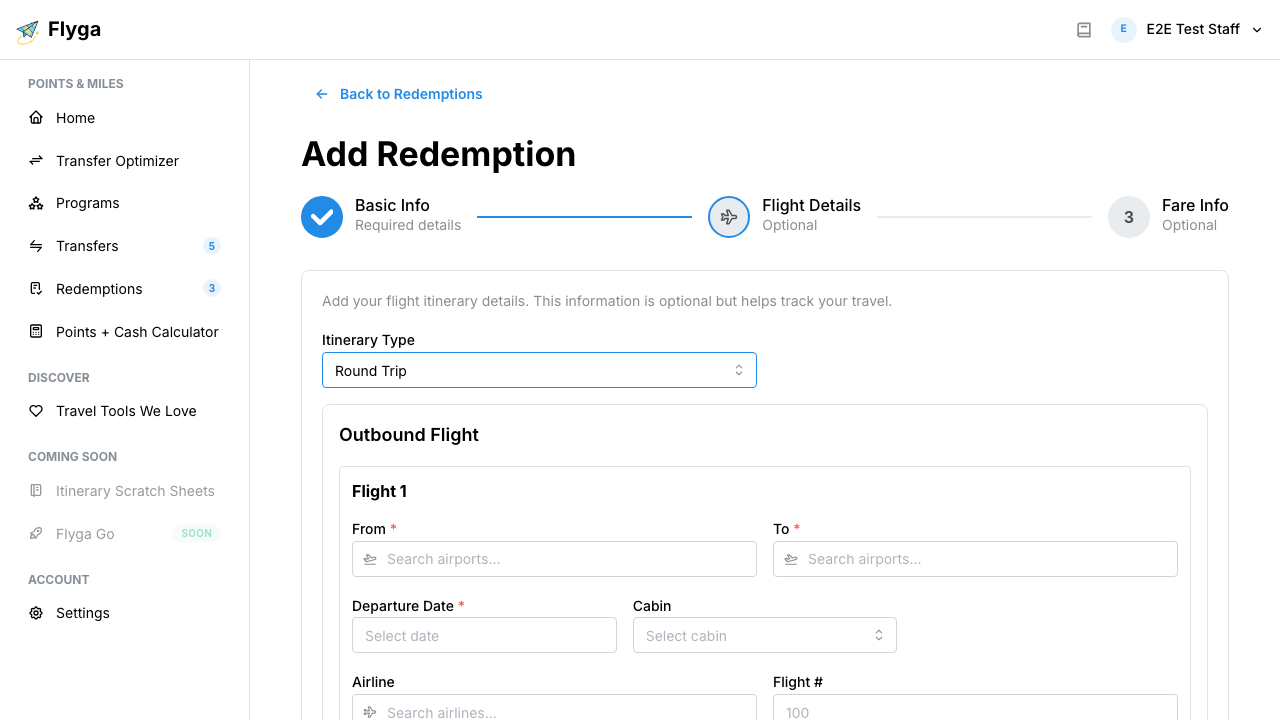
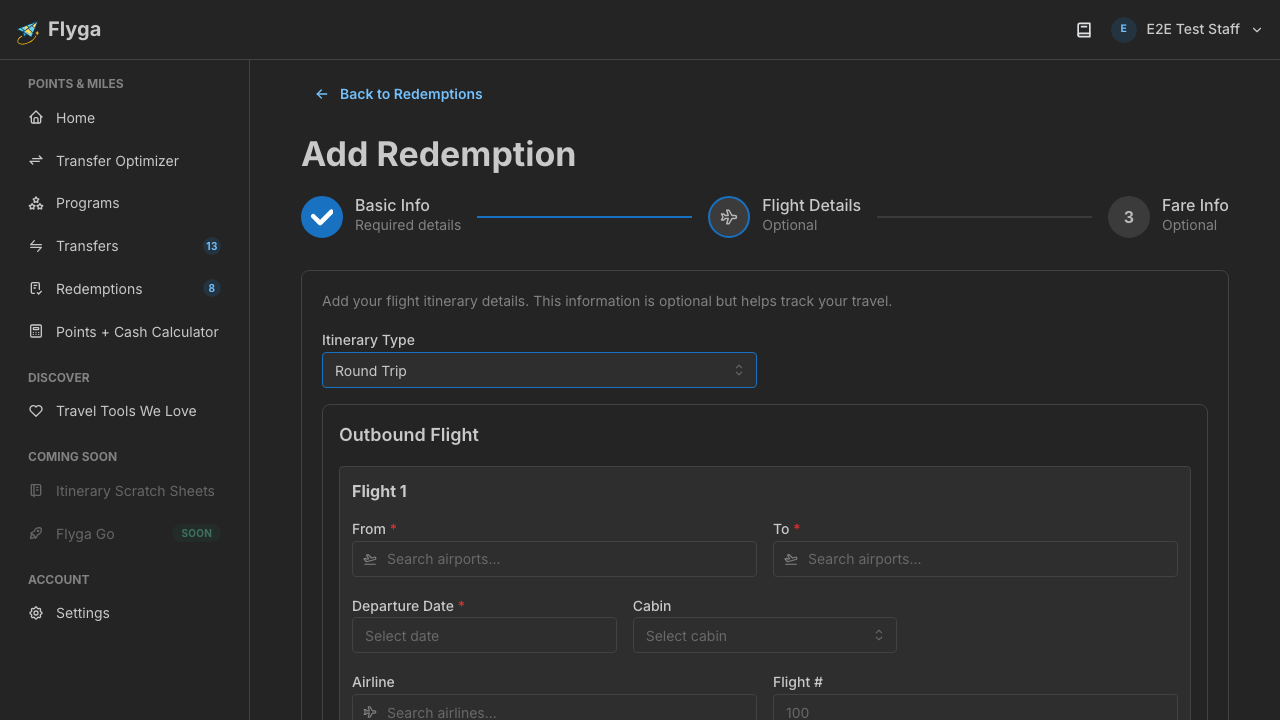
The form adapts based on your selection — round trips show outbound and return sections, while multi-city lets you add as many legs as you need.
Filling In a Flight Segment
Section titled “Filling In a Flight Segment”For each leg of your trip, you can enter:
- From / To — Airport codes (start typing and select from the dropdown)
- Departure Date — When the flight departs
- Cabin — Economy, Premium Economy, Business, or First
- Airline — The marketing carrier (the airline on your ticket)
- Flight # — The flight number
If your itinerary has connections (e.g., LAX to CDG via JFK), click Add Connection to add another segment within the same leg.
Adding More Legs
Section titled “Adding More Legs”For multi-city and open jaw itineraries, click Add Another Leg at the bottom to add additional flights. Each leg gets its own section with independent airport, date, and flight fields.
Viewing Your Itinerary
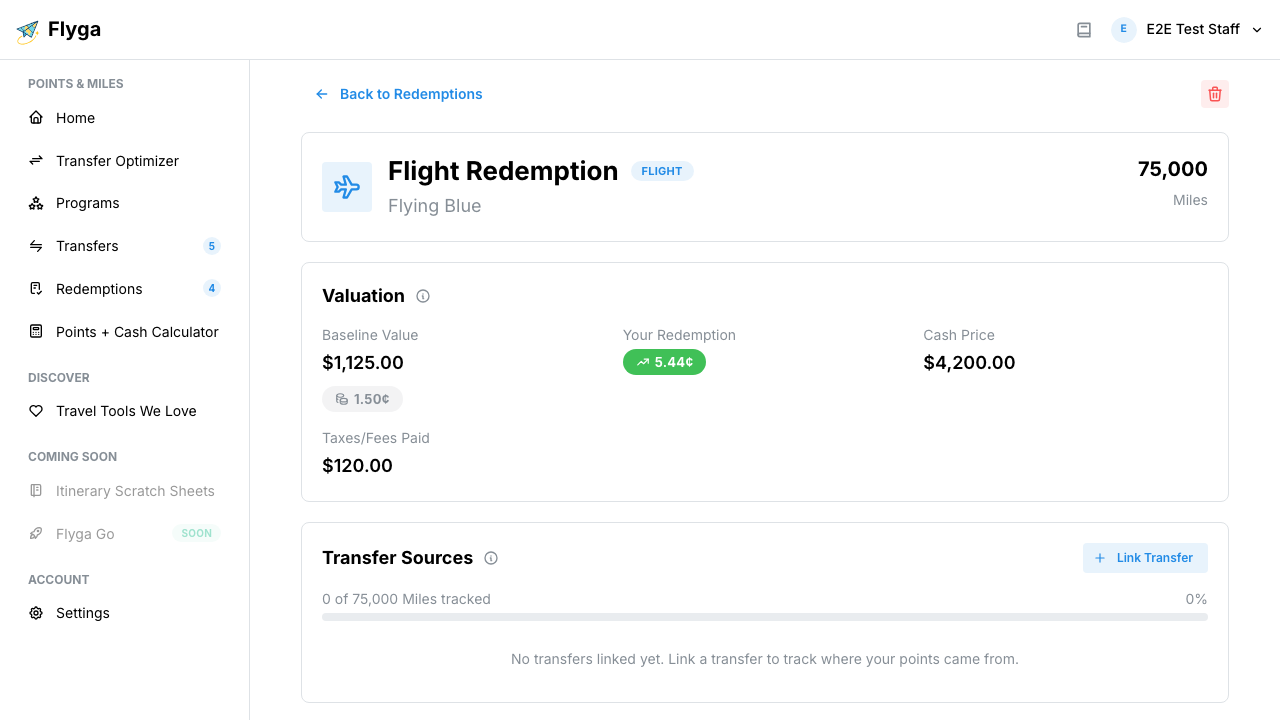
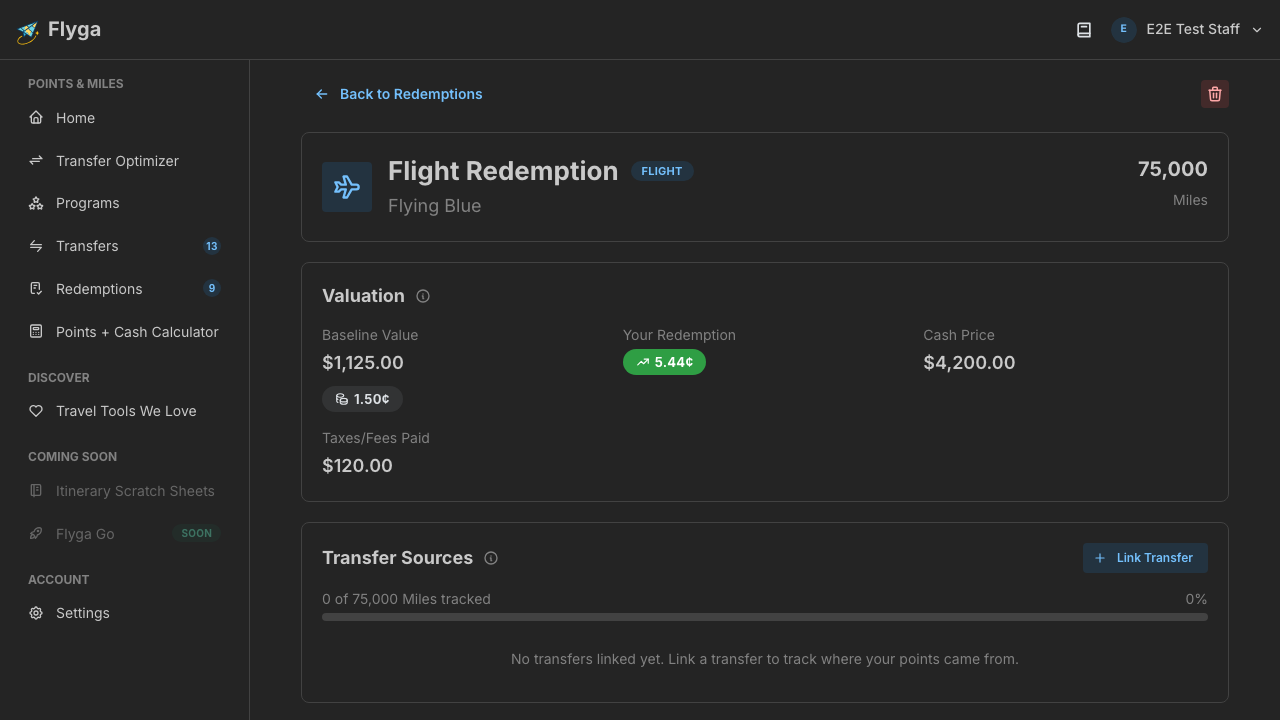
Section titled “Viewing Your Itinerary”After creating the redemption, the detail page shows your full flight itinerary with:
- Route badges for each leg (e.g., “LAX to CDG”)
- Itinerary type badge (Round Trip, One Way, etc.)
- Booking reference (if you entered one)
- Individual segment cards showing airline, flight number, cabin class, and booking code
Skipping Flight Details
Section titled “Skipping Flight Details”Flight details are entirely optional. If you just want to log the points and value without the itinerary, click Skip during the flight details step. You can always come back and add the details later.
For tips on getting the most out of your redemption tracking, see Tips and Best Practices.